Showing posts with label IS. Show all posts

Tuesday, August 9, 2016

How to Configure SAML2 SSO in WSO2 DAS Portal

Single sign-on (SSO) allows users, who are authenticated against one application, gain access to multiple other related applications without having to repeatedly authenticate themselves.

Following this blog, you can configure SSO for DAS Portal and Management Console. This post is applicable to DAS 3.1.0+.
  1. Share user store between WSO2 DAS and WSO2 Identity Server following this.
  2. Mount and share registry between WSO2 DAS and WSO2 Identity Server following this.
  3. Login to Identity Server and Go to Home > Identity > Service Providers > Add page.
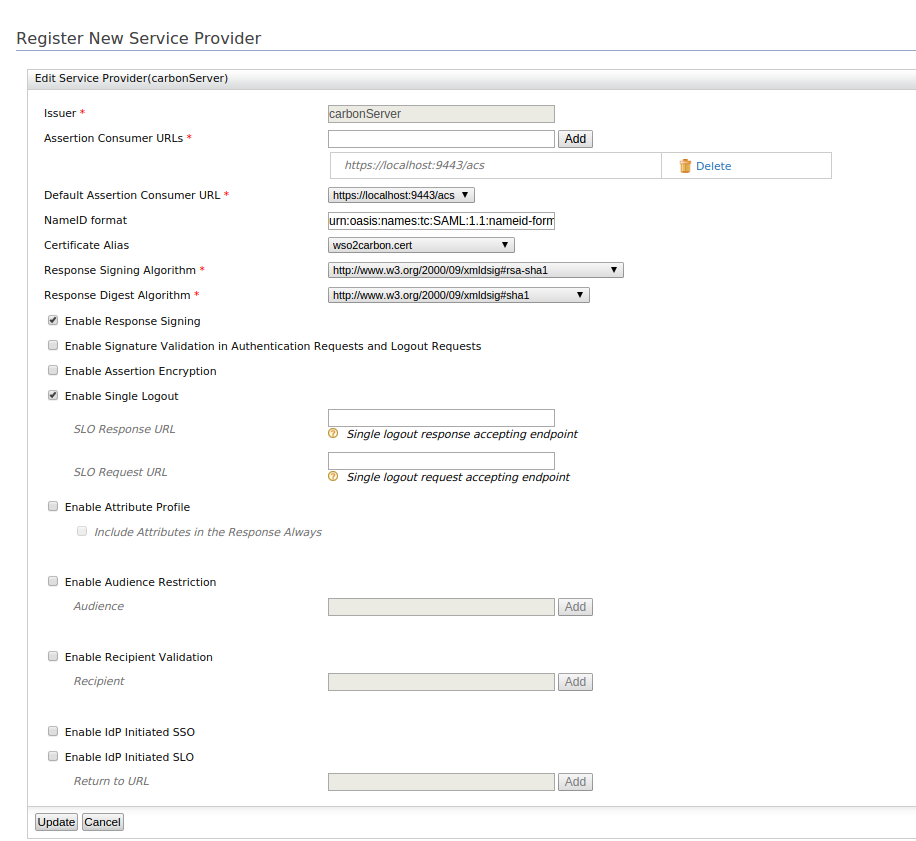
  4. Create a service provider for Management Console with following configuration.
    • Issuer : carbonServer
    • Assertion Consumer URL : https://<DAS_URL>:<DAS_PORT>/acs
    • Select the following options:
      • Enable Response Signing
      • Enable Single Logout 

        For Example :

  5. Create a service provider for DAS  Portal with following configuration.
    • Issuer : portal
    • Assertion Consumer URL : https://<DAS_URL>:<DAS_PORT>/portal/acs
    • Select the following options:
      • Enable Response Signing
      • Enable Single Logout
      • Enable Audience Restriction and enter following 2 audiences.
        • Token endpoint url (eg: https://<IDP_URL>:<IDP_PORT>/oauth2/token )
        • Management console issuer name (i.e. carbonServer)
      • Enable Recipient Validation and enter the following recipient.
        • Token endpoint url (eg: https://<IDP_URL>:<IDP_PORT>/oauth2/token )
          For Example :
  6. Change the SAML2SSOAuthenticator configuration in <DAS_HOME>/repository/conf/security/authenticators.xml file as follows:
    • Set disabled = false in <Authenticator> element
    • ServiceProviderID : it is the issuer name of the service provider created in step 4 (carbonServer)
    • IdentityProviderSSOServiceURL : https://<IDP_URL>:<IDP_PORT>/samlsso
    • AssertionConsumerServiceURL: https://<DAS_URL>:<DAS_PORT>/acs
  7. Change the "authentication" configuration in <DAS_HOME>/repository/deployment/server/jaggeryapps/portal/configs/designer.json
    • activeMethod :sso
    • issuer: portal
    • identityProviderURL: https://<IDP_URL>:<IDP_PORT>/samlsso
    • acs : https://<DAS_URL>:<DAS_PORT>/portal/acs
  8. Restart DAS server.

Friday, August 5, 2016

How to Share Userstore Between Two WSO2 Servers

We can share user store between WSO2 carbon servers. Here I'm going to explain using WSO2 App Manager and WSO2 Identity Server.
  1. Create new database called APPM_UM_DB in MYSQL server
  2. Create tables inside the created database by executing the script in <APPM_HOME>/dbscripts/mysql.sql
  3. If App Manager and Identity Server are running on the same machine, follow this step.
  4. Set Offset value to 1 in /repository/conf/carbon.xml.
       
       <Offset>1</Offset>  
       
  5. Specify the datasource definition like below in the <APPM_HOME>/repository/conf/datasources/master-datasources.xml to connect early created APPM_UM_DB database to share user store.
       
       <datasource>  
          <name>WSO2UM_DB</name>  
          <description>The datasource used for user manager database</description>  
          <jndiConfig>  
            <name>jdbc/WSO2UM_DB</name>  
          </jndiConfig>  
           <definition type="RDBMS">  
             <configuration>  
               <url>jdbc:mysql://localhost:3306/APPM_UM_DB</url>  
                <username>username</username>  
                <password>password</password>  
                <driverClassName>com.mysql.jdbc.Driver</driverClassName>  
                <maxActive>50</maxActive>  
                <maxWait>60000</maxWait>  
                <testOnBorrow>true</testOnBorrow>  
                <validationQuery>SELECT 1</validationQuery>  
                <validationInterval>30000</validationInterval>  
             </configuration>  
         </definition>  
       </datasource>  
          
    
  6. Add the same data source configuration to <IS_HOME>/repository/conf/datasources/master-datasources.xml.
  7. Copy the database driver to both <IS_HOME>/repository/components/lib and <AppM_HOME>/repository/components/lib directories.
  8. Update the <APPM_HOME>/repository/conf/user-mgt.xml with jndiConfig name added in step 4 (i.e. jdbc/WSO2UM_DB) as below.
       
       <configuration>   
         ...  
         <Property name="dataSource">jdbc/WSO2UM_DB</Property>  
       </configuration>  
       
  9. Repeat step 7 to <IS_HOME>/repository/conf/user-mgt.xml.
  10. The Identity Server has an embedded LDAP user store and App manager has a JDBC user store by default. You can use either JDBC or LDAP user store in both servers(Both should be the same.) Here I'm using JDBC user store. Copy following configuration from <APPM_HOME>/repository/conf/user-mgt.xml to <IS_HOME>/repository/conf/user-mgt.xml. Remember to remove LDAP user store from Identity server user-mgt.xml.
       
       <UserStoreManager class="org.wso2.carbon.user.core.jdbc.JDBCUserStoreManager">  
           <Property name="TenantManager">org.wso2.carbon.user.core.tenant.JDBCTenantManager</Property>  
             <Property name="ReadOnly">false</Property>  
           <Property name="MaxUserNameListLength">100</Property>  
           <Property name="IsEmailUserName">false</Property>  
           <Property name="DomainCalculation">default</Property>  
           <Property name="PasswordDigest">SHA-256</Property>  
           <Property name="StoreSaltedPassword">true</Property>  
           <Property name="ReadGroups">true</Property>  
            <Property name="WriteGroups">true</Property>  
           <Property name="UserNameUniqueAcrossTenants">false</Property>  
           <Property name="PasswordJavaRegEx">^[\S]{5,30}$</Property>  
           <Property name="PasswordJavaScriptRegEx">^[\S]{5,30}$</Property>  
            <Property name="UsernameJavaRegEx">^[^~!#$;%^*+={}\\|\\\\&lt;&gt;,\'\"]{3,30}$</Property>  
            <Property name="UsernameJavaScriptRegEx">^[\S]{3,30}$</Property>  
            <Property name="RolenameJavaRegEx">^[^~!#$;%^*+={}\\|\\\\&lt;&gt;,\'\"]{3,30}$</Property>  
            <Property name="RolenameJavaScriptRegEx">^[\S]{3,30}$</Property>  
           <Property name="UserRolesCacheEnabled">false</Property>  
           <Property name="MaxRoleNameListLength">100</Property>  
           <Property name="MaxUserNameListLength">100</Property>  
            <Property name="SharedGroupEnabled">false</Property>  
           <Property name="SCIMEnabled">false</Property>  
         </UserStoreManager>  
       
    
  11. Restart both servers.
That's all. Now if you create a user or a role from one server, it will be shown in both servers.